Guide
ExploreCompath.
Find routes. Build your own. Navigate offline.
Everything you need to discover, plan and enjoy your next adventure.
Everything you can do with Compath
Compath brings discovery, route building, planning, navigation and sharing together in a single app.
01. Discover
Find routes around you, explore the map, filter and get inspired.
Explore02. Create & generate
Draw your own route, have one generated for you, or import a GPX file.
Explore03. Prepare
Elevation, weather, restrictions and trail conditions before you go.
Explore04. Go
GPS tracking, turn-by-turn following, offline maps and live location sharing.
Explore05. Organize & share
Favorites, folders, profile and stats, and sharing with the people who matter.
Explore
01 · Discover
Find your next outing.
Search any place or route, explore the map, filter by activity and difficulty. Find the perfect route, wherever you are.
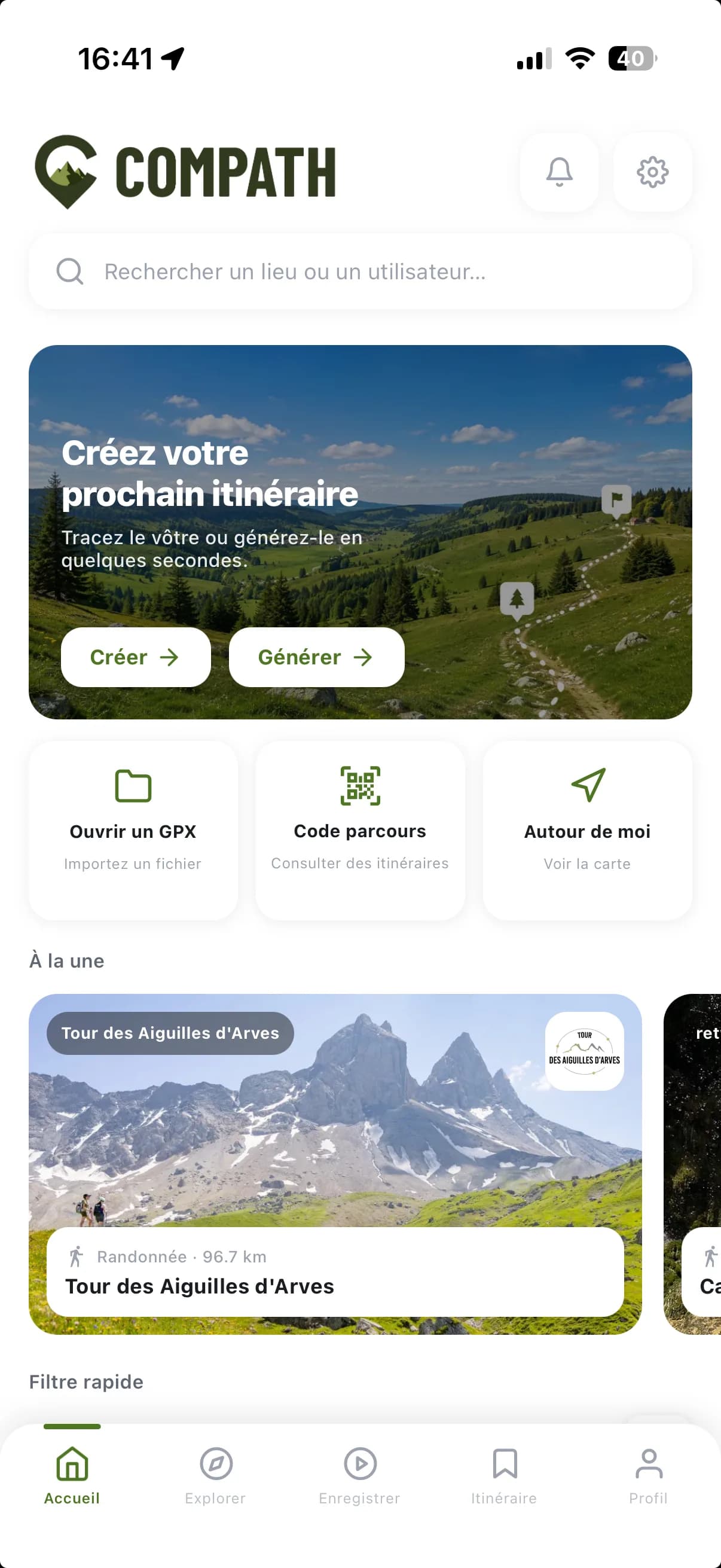
The home screen
- Unified search: a place, a route or a folder by its code, or a public member by name.
- Create or generate a route in seconds.
- Open a GPX file or enter a route code.
- Featured routes: itineraries highlighted by our partners.
- Notifications: activity invites and safety-contact requests, with an unread counter.
- Settings: customize the app and the data shown on the maps.
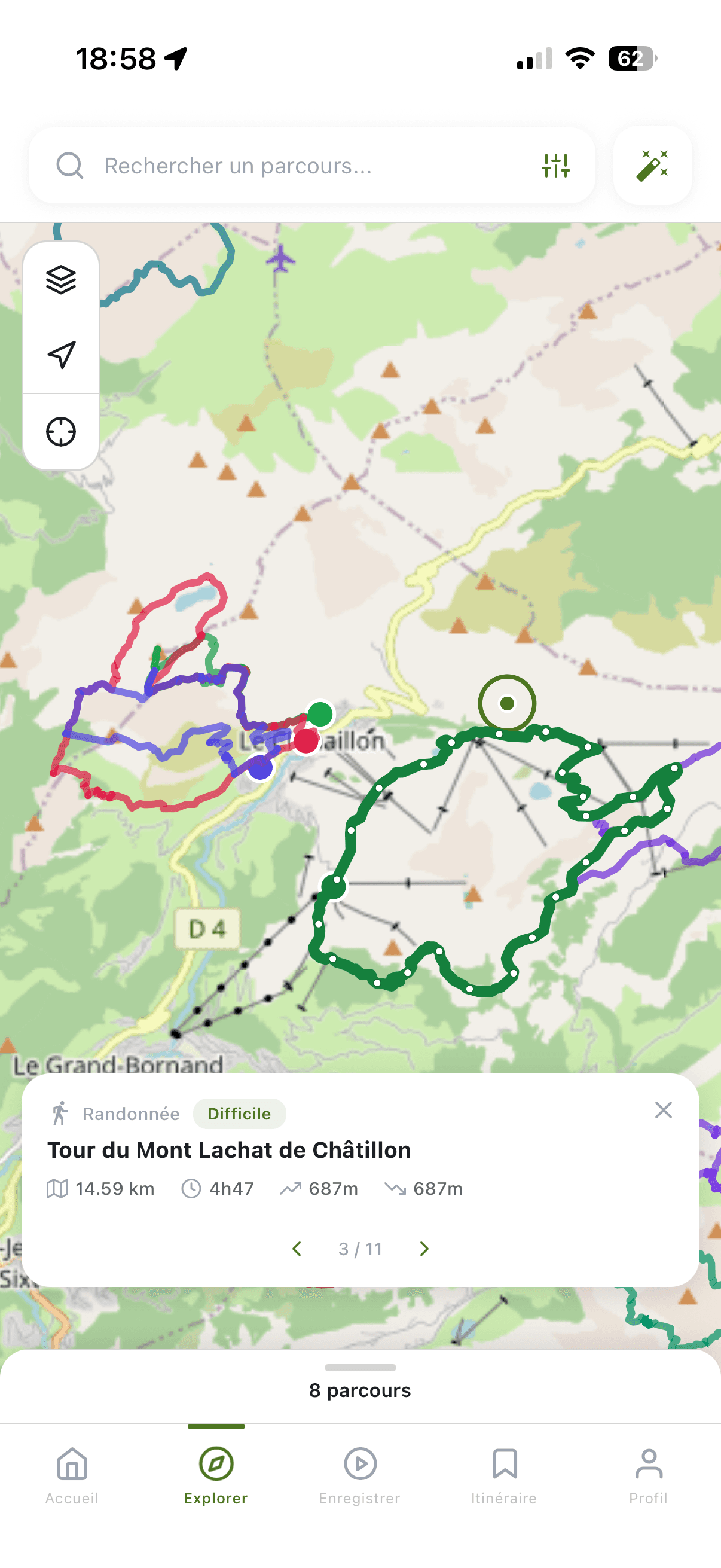
The Explore map
- Search a place and filter by activity, difficulty, distance and elevation gain.
- The route lines; the colored dots are their start points.
- Select a route: a summary appears, tapping opens the detail page.
- Base map, recenter on your position and automatic recentering.
- Generate a route automatically straight from the map.
- Number of routes found, and a toggle between Map and List views.
The map layers
- Standard base maps (OSM, IGN, topo) and premium ones.
- Dated satellite view: the most recent imagery available for the area.
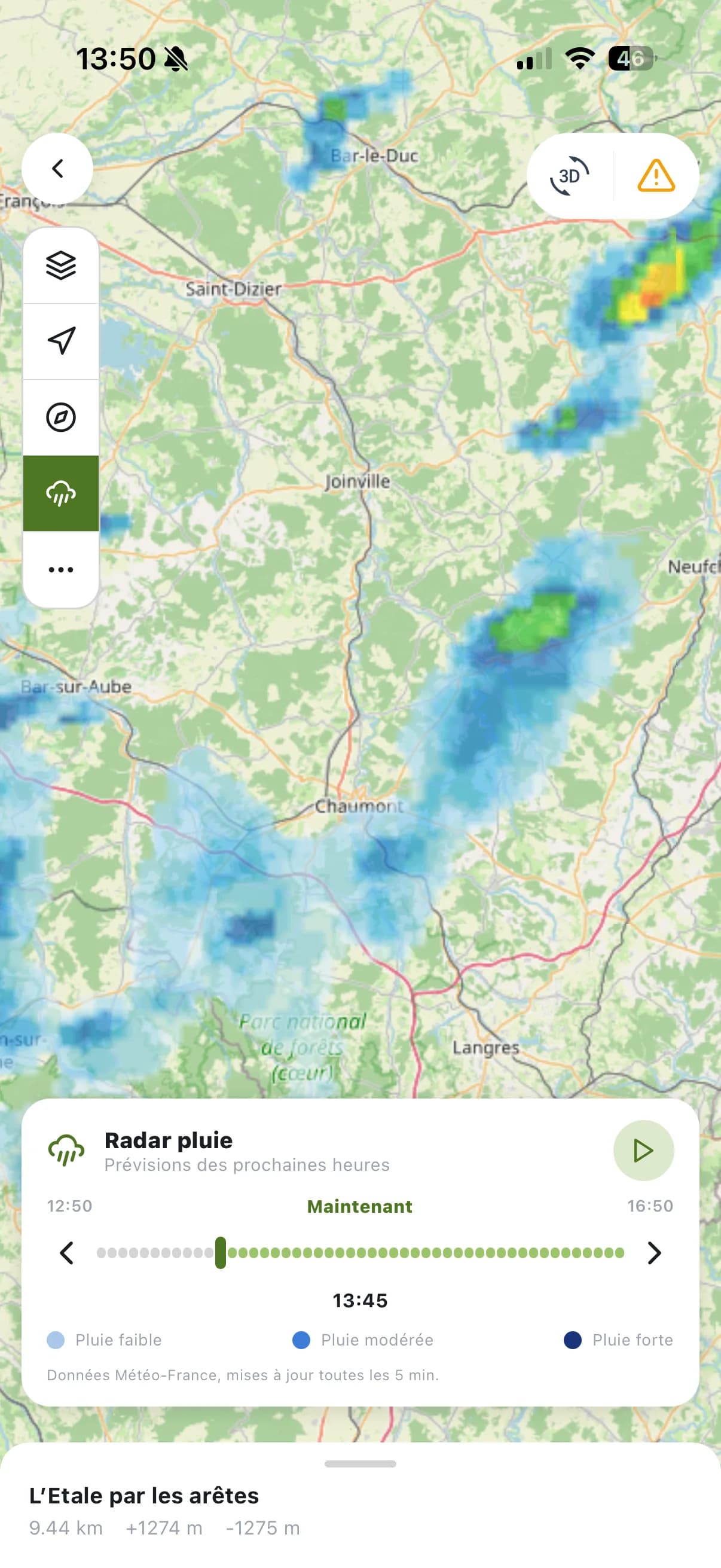
- Animated precipitation radar, to watch the rain coming in.
- Slope shading, to spot the steep sections before you reach them.
- Drone restriction zones.
- Soil moisture across the massifs: dry ground or saturated.
02 · Create & generate
Build the perfect route.
Draw your own route on the map, ask for one to be generated, or start from an existing GPX file.
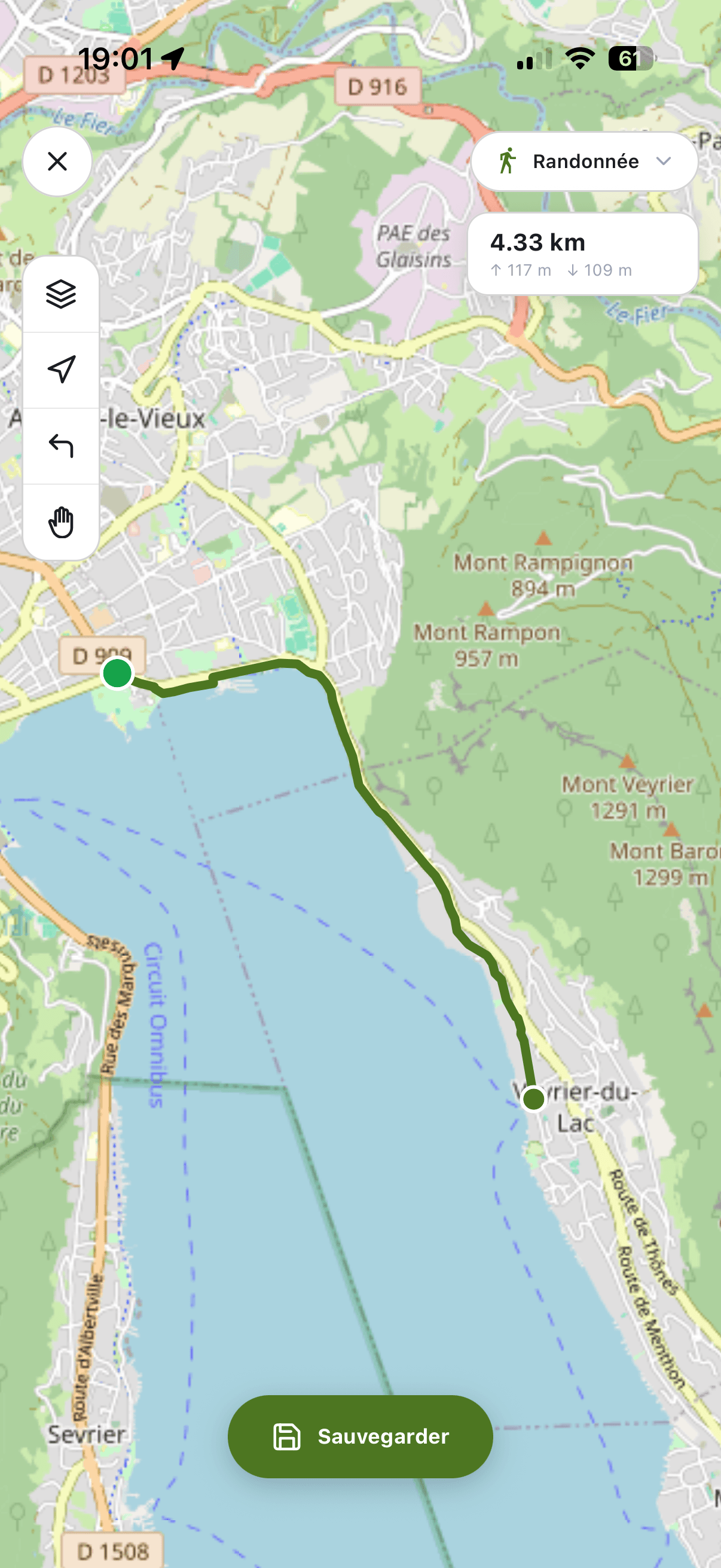
Draw it on the map
- The activity you pick drives the routing: trails, tracks, roads…
- Tap the map: the line snaps to the paths that are really there.
- Distance and elevation gain update live as you draw.
- Manual mode (hand button): straight lines, off the path network.
- Save the route, or keep it as a draft.
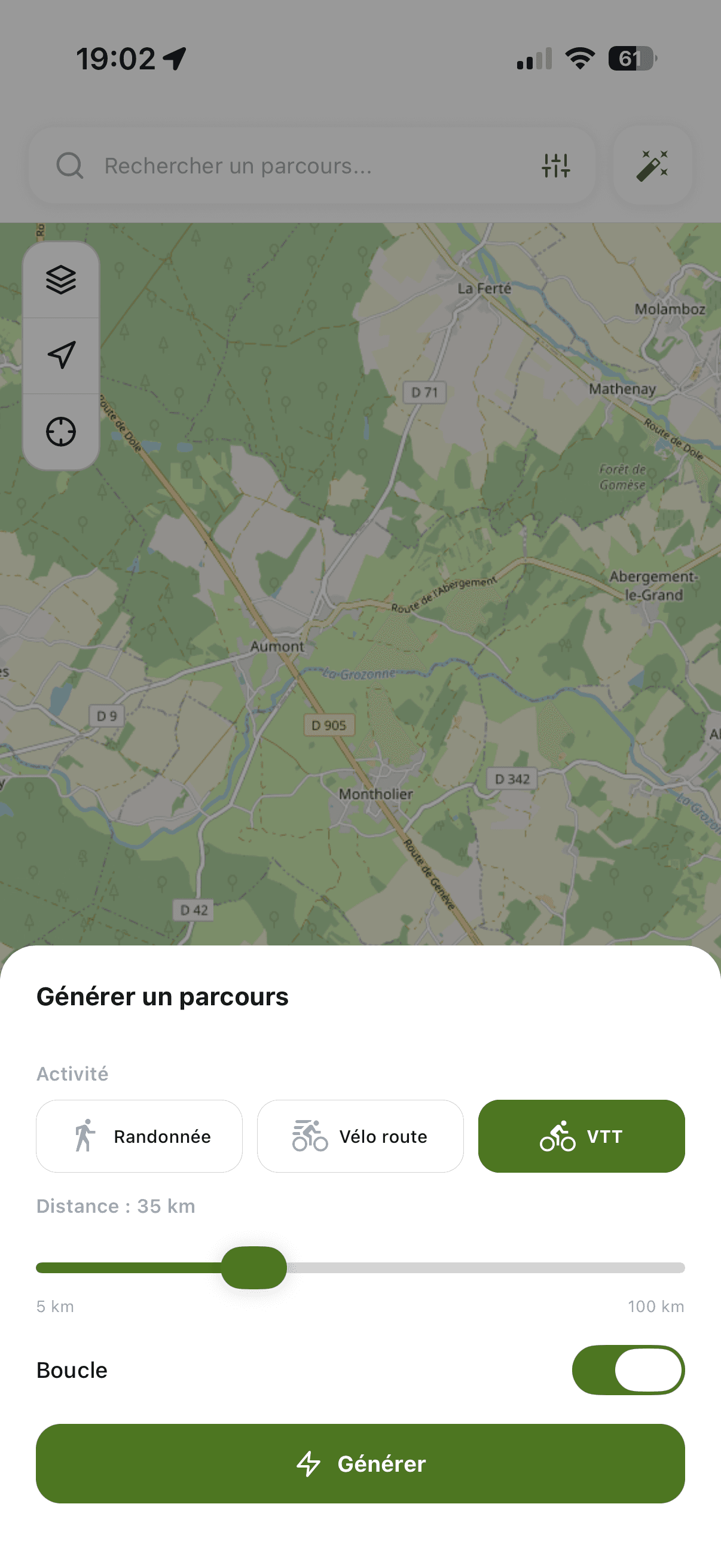
Generate one
- Choose the activity and the distance you want.
- Loop or point-to-point.
- Every attempt proposes a different result.
- A generated route opens like any other: editable and saveable.
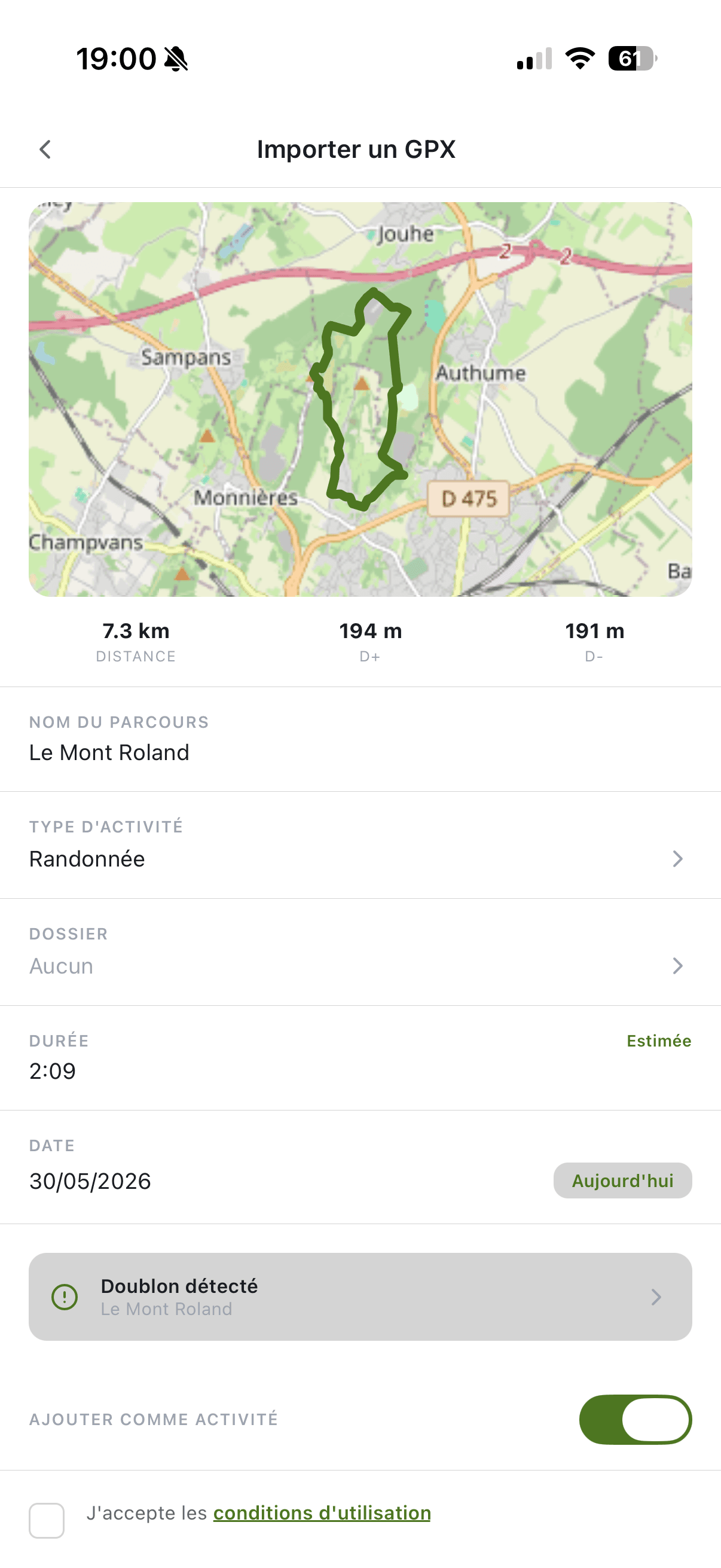
Open a GPX
- Preview of the imported track before saving.
- Distance and elevation gain computed when the file has none.
- Name, activity type and destination folder.
- Automatic duplicate detection.
- Optionally create the matching activity in your history.
03.1 · Prepare
Prepare every outing.
A route page gathers the elevation profile, the weather, environmental restrictions and trail conditions.
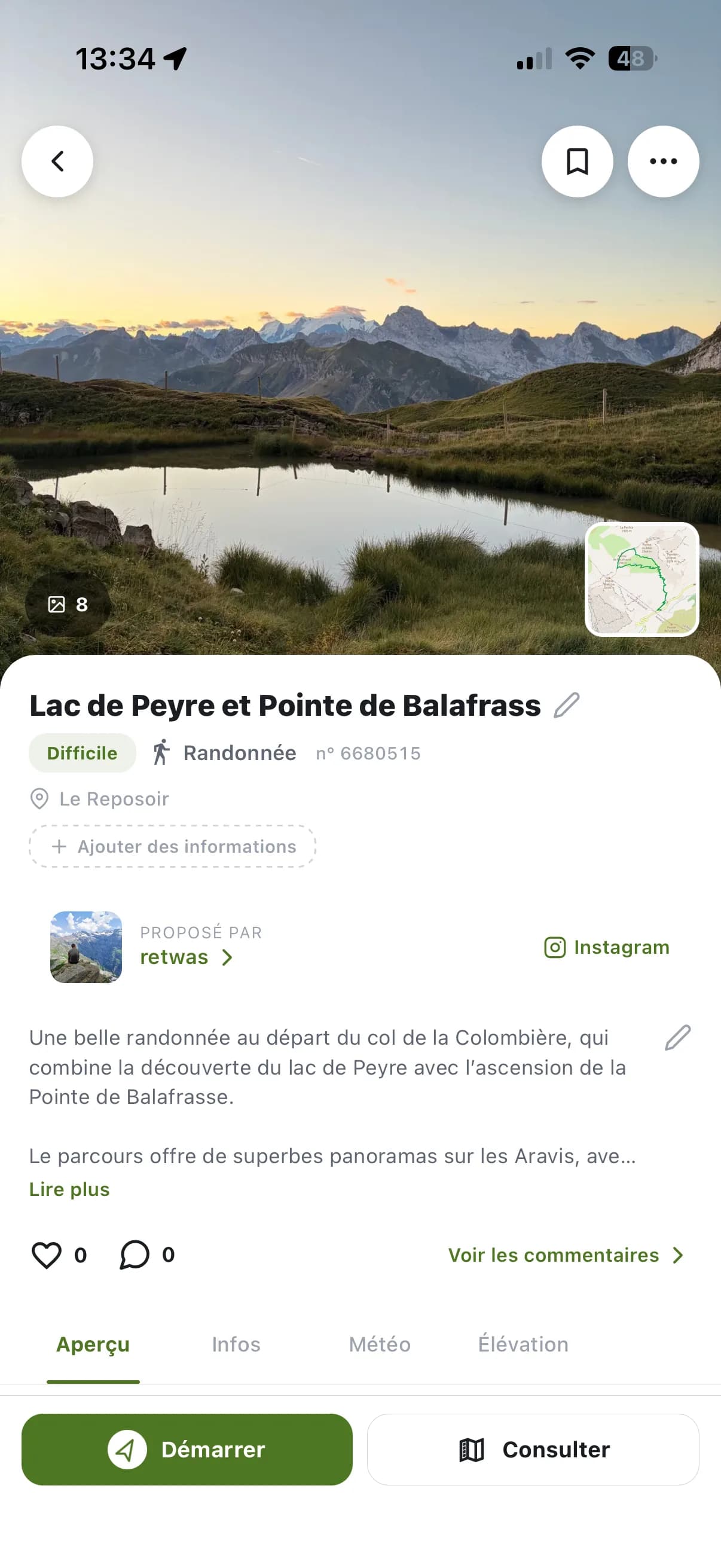
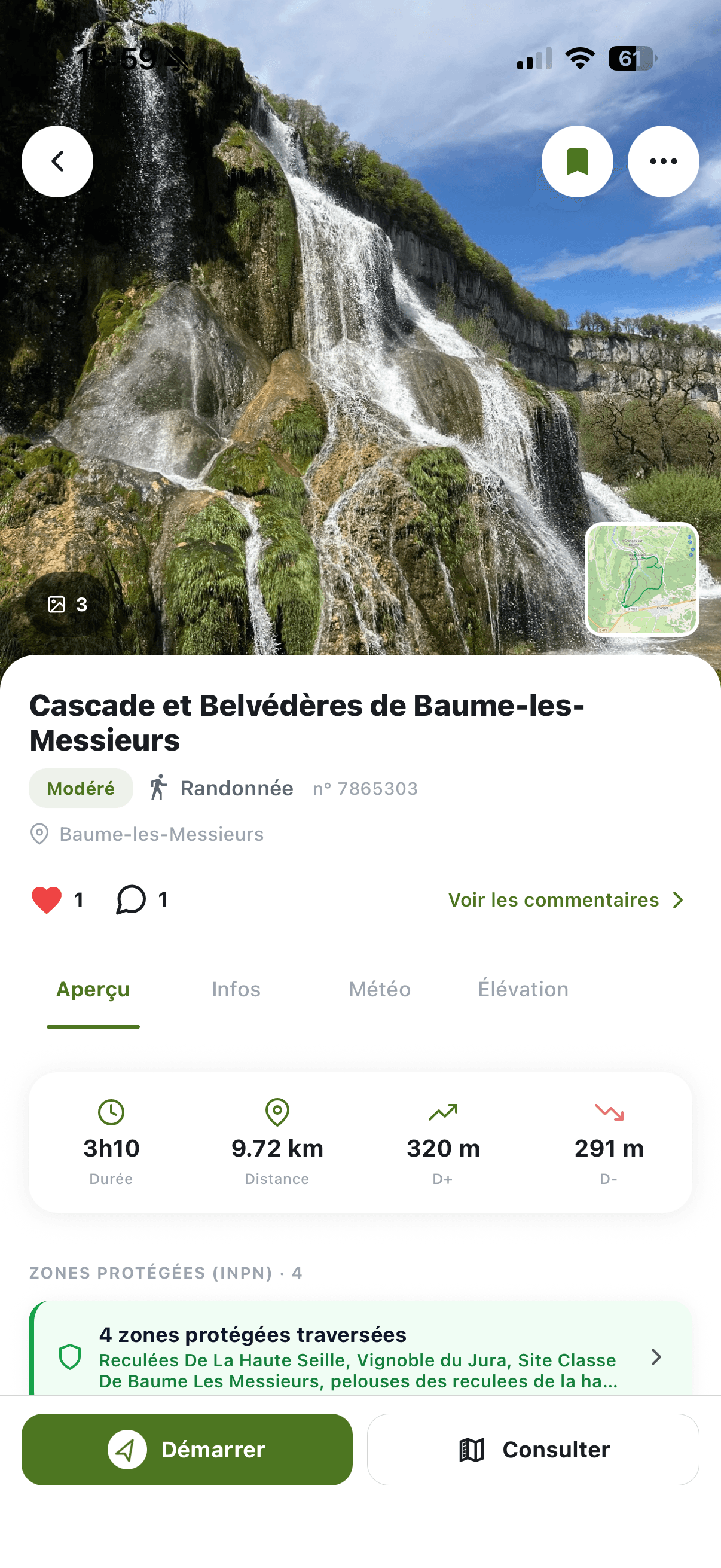
The route page
- Route photos (or its track) and a mini-map.
- Name, difficulty and activity type.
- Time, distance, elevation gain and loss.
- Likes and comments from other users.
- Overview, Info, Weather and Elevation tabs.
- Options menu: share, export GPX, navigate, mark as completed.
- Way type and surface: how much trail, track and tarmac.
Weather
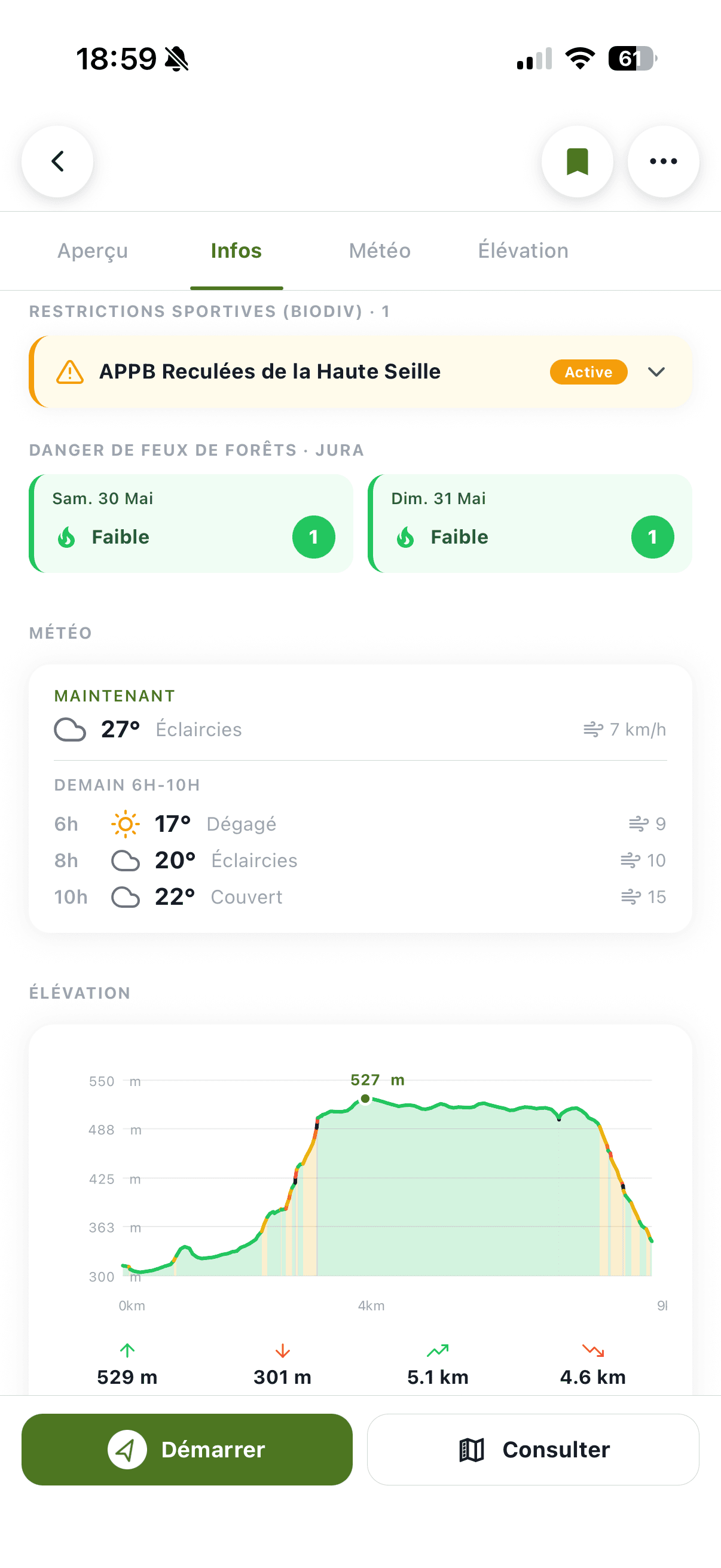
- Current weather and next-morning forecast.
- Live wildfire-risk forecast, attached to every route.
- Spot the exposed areas and sensitive periods before you leave.
- Useful right into fire-prone forest terrain, where access can be closed.
- Météo-France BERA reports, attached to every route by massif.
- Official snowpack conditions and avalanche risk level for the area.
- Updated daily and available offline, so you can read them in the mountains with no signal.
- Estimated snow cover along the track.
Planning an outing
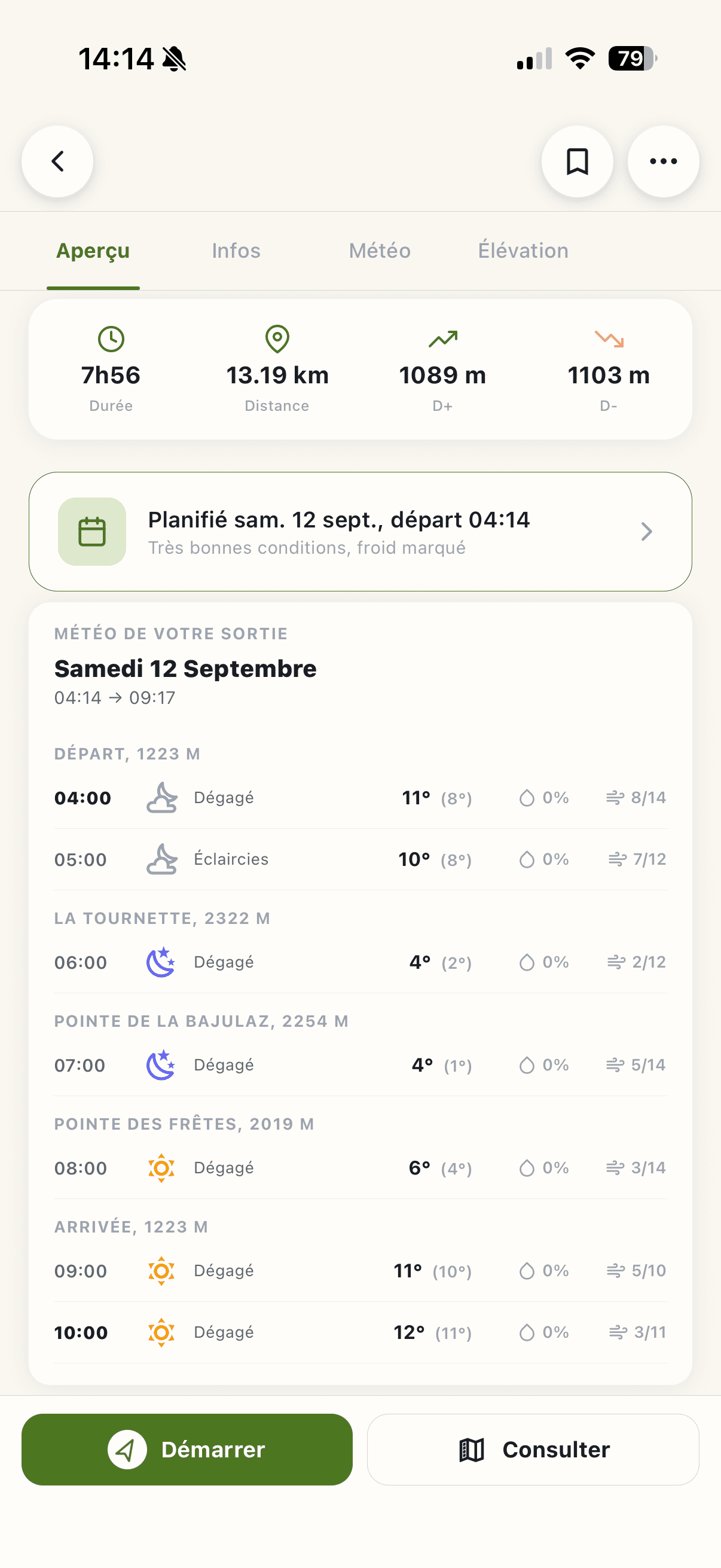
- Give a route a date and Compath turns it into an outing it keeps watch on.
- Start at a fixed time, or at sunrise or sunset on the summit of your choice.
- Adjustable duration estimate, calculated return time, warning when it falls after dark.
- Hour-by-hour weather across the outing, from the start to the way back.
- Every hour shows the conditions where you'll be at that moment, with its elevation: trailhead, summits, huts, finish.
- An overall verdict and the reason behind it: rain, wind, visibility, storms, cold.
The weather watch
- Compath follows conditions until you leave and only writes when something changes.
- A briefing the evening before for a morning start, the same morning otherwise.
- An alert when conditions turn, and another when they recover.
- Storms, avalanche risk 4 and access closures come before everything else.
- If a neighbouring day looks clearly better, Compath offers to move the outing for you.
- Nothing between 9pm and 7am, and never more than three messages a day: a watch that wakes you for nothing is not a watch.
- Notifications on the phone and on the watch.
Get ready for offline
- Download the route and its map from the options menu.
- The Downloaded tab gathers everything that still works without a signal.
- Downloaded base maps stay available throughout the outing.
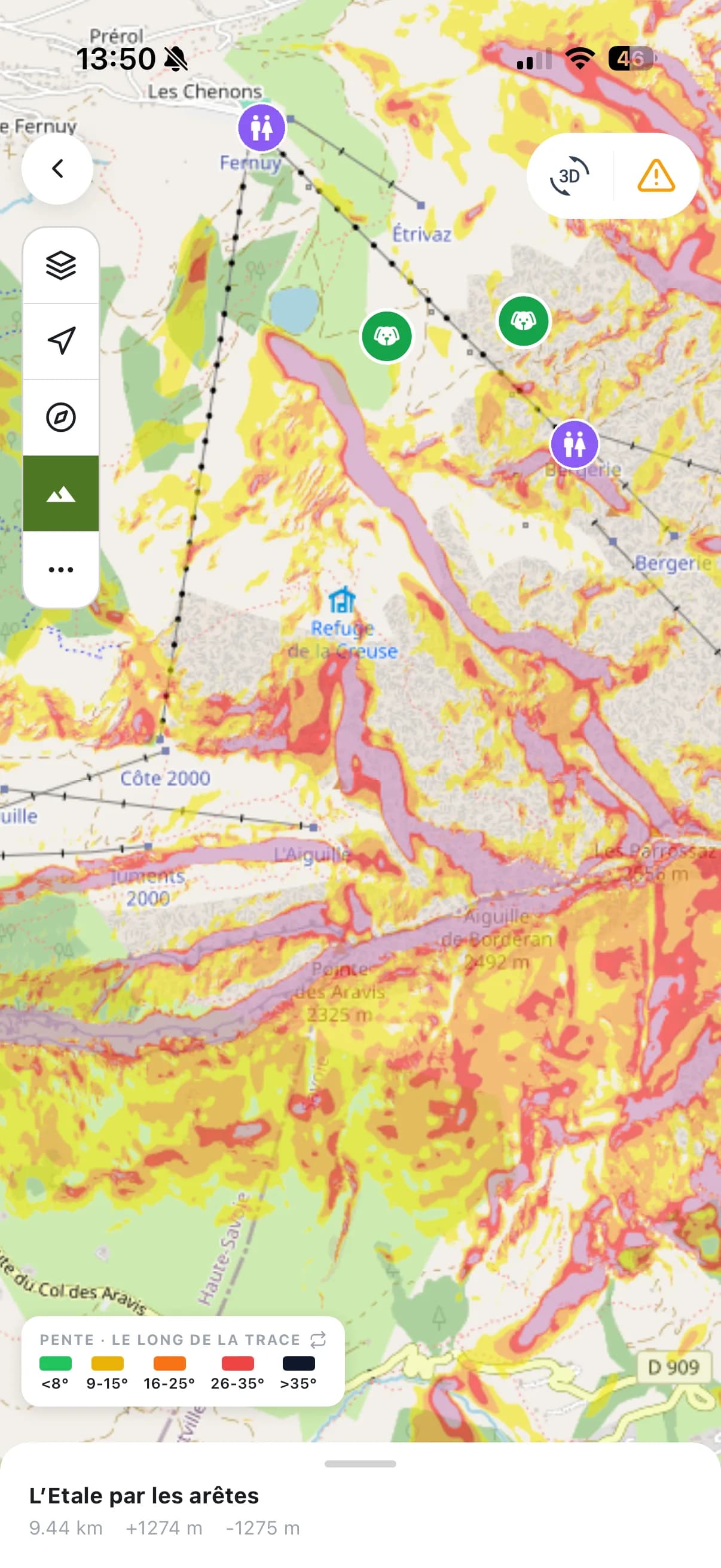
Slopes to the degree
- Elevation profile, gains and climb / descent lengths.
- Slope colouring from IGN's RGE ALTI® 5 m digital terrain model (1 m in some areas).
- Passages above 30° stand out immediately.
- Built on LiDAR acquisitions carried out since 2010 across the whole of France.
Regulated & sensitive zones
- National parks, Natura 2000 sites and biotope protection orders (INPN).
- Seasonal sport restrictions via Biodiv'Sports.
- Computed automatically for every route: you see where access is limited or forbidden.
- Pastures guarded by livestock guardian dogs.
The Pro subscription is taken out in the app, from your account.See the pricing
03.2 · 3D view
See the terrain before you go.
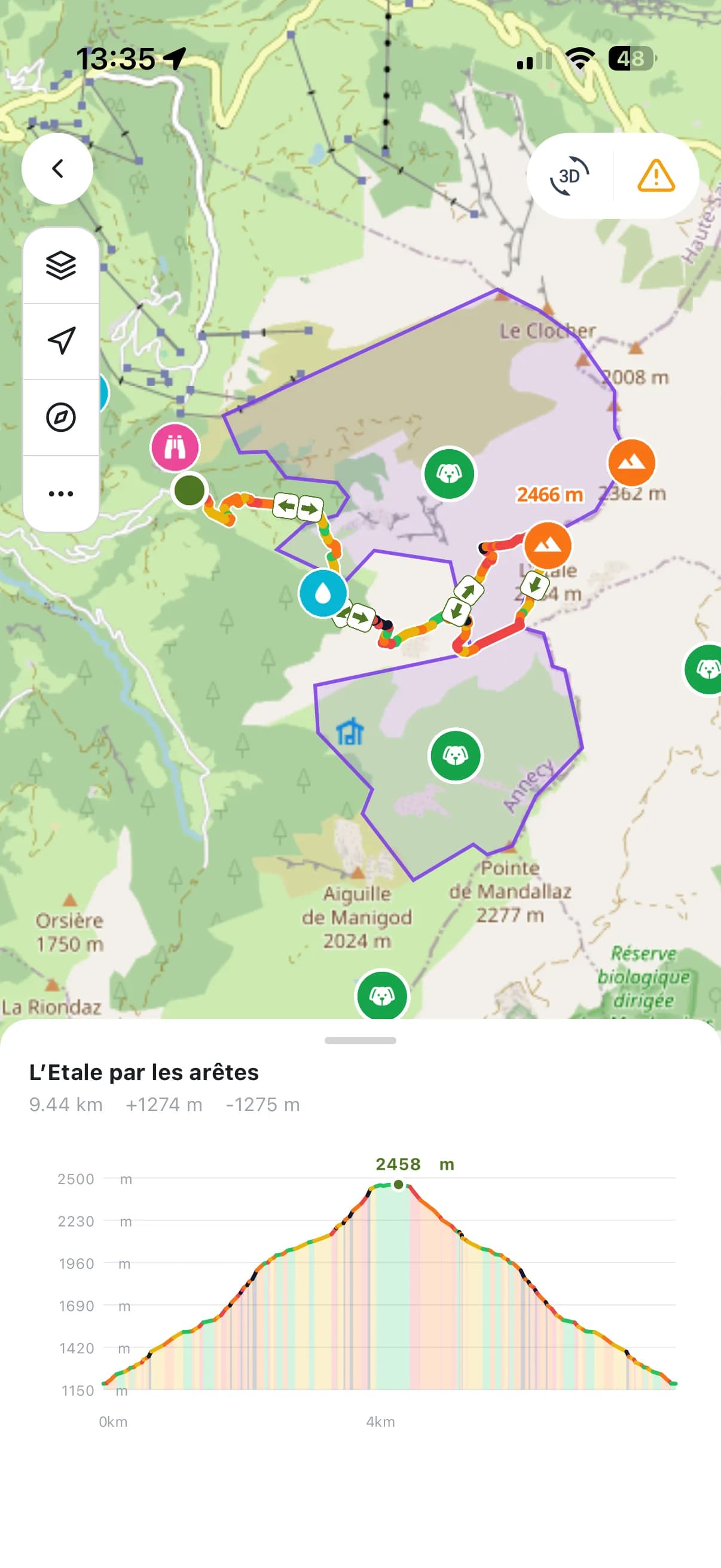
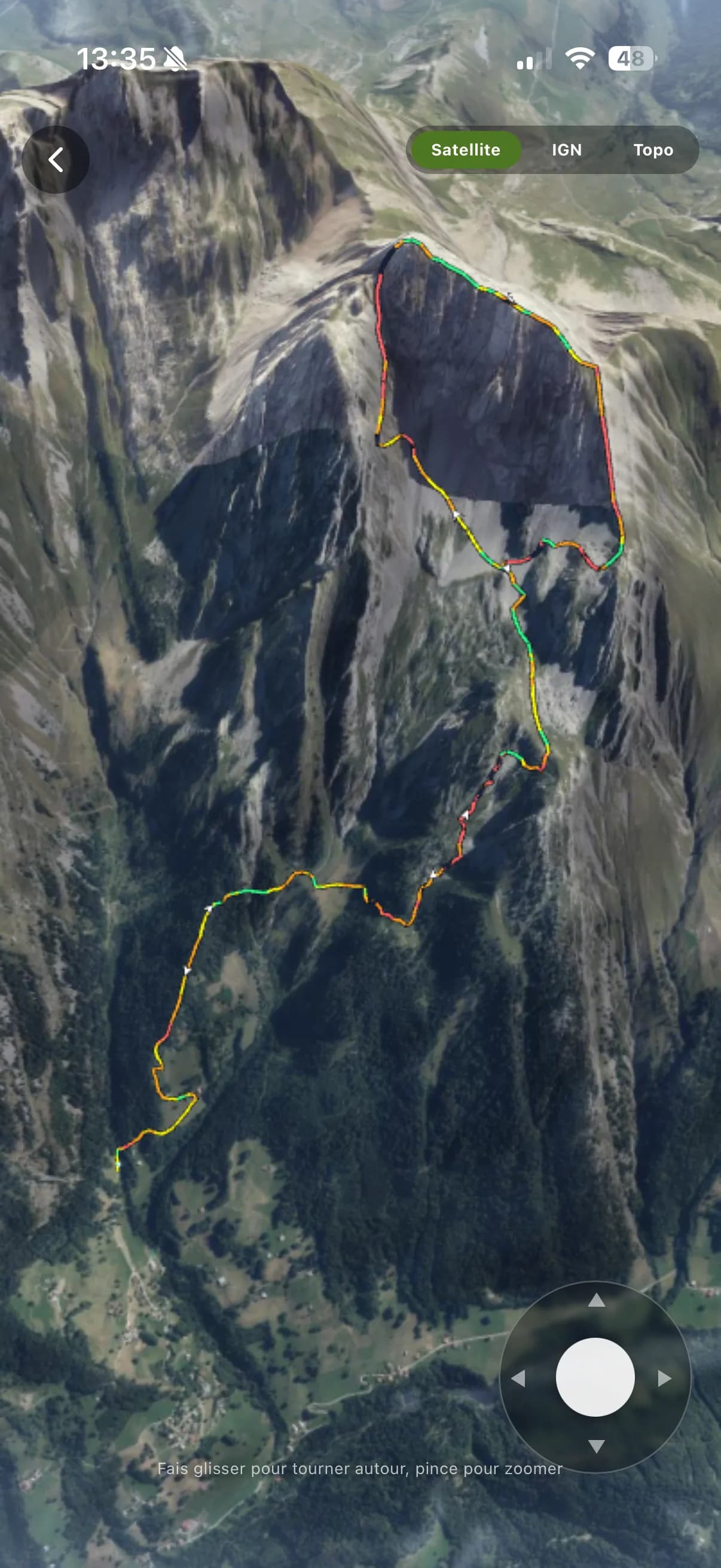
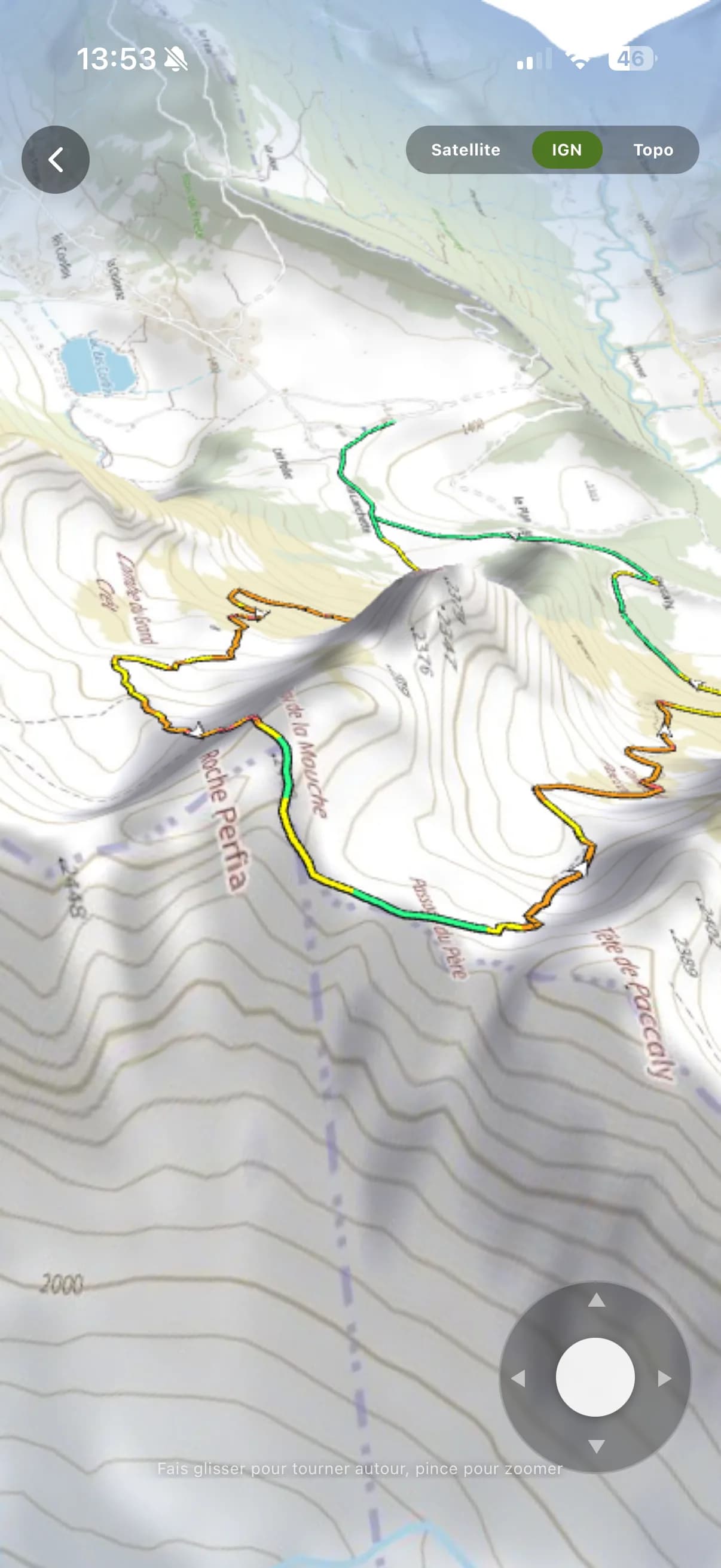
The 3D view lays your track on the real ground: judge the gradient, the exposed sections and the scenery waiting for you, then take the flyover away as a video.
The ground, in relief
- Your track on the real relief: turn around it, zoom in, follow it from any angle.
- Pick the base map (satellite, IGN or topo) without leaving the 3D view.
- Slope shading is drawn straight onto the relief: the steep sections stand out at a glance.
- Distance, elevation gain, estimated time and difficulty stay on screen throughout the flyover.
The flyover, as a video
- Request the flyover video from the 3D view.
- Rendering happens on our servers (2 to 3 minutes): you can close the screen and carry on planning.
- A notification tells you as soon as the video is ready.
- Download it and share it on your social networks.
04 · Go
Stay on track, even offline.
Record your outing, follow a route step by step, share your live location and report what you run into.
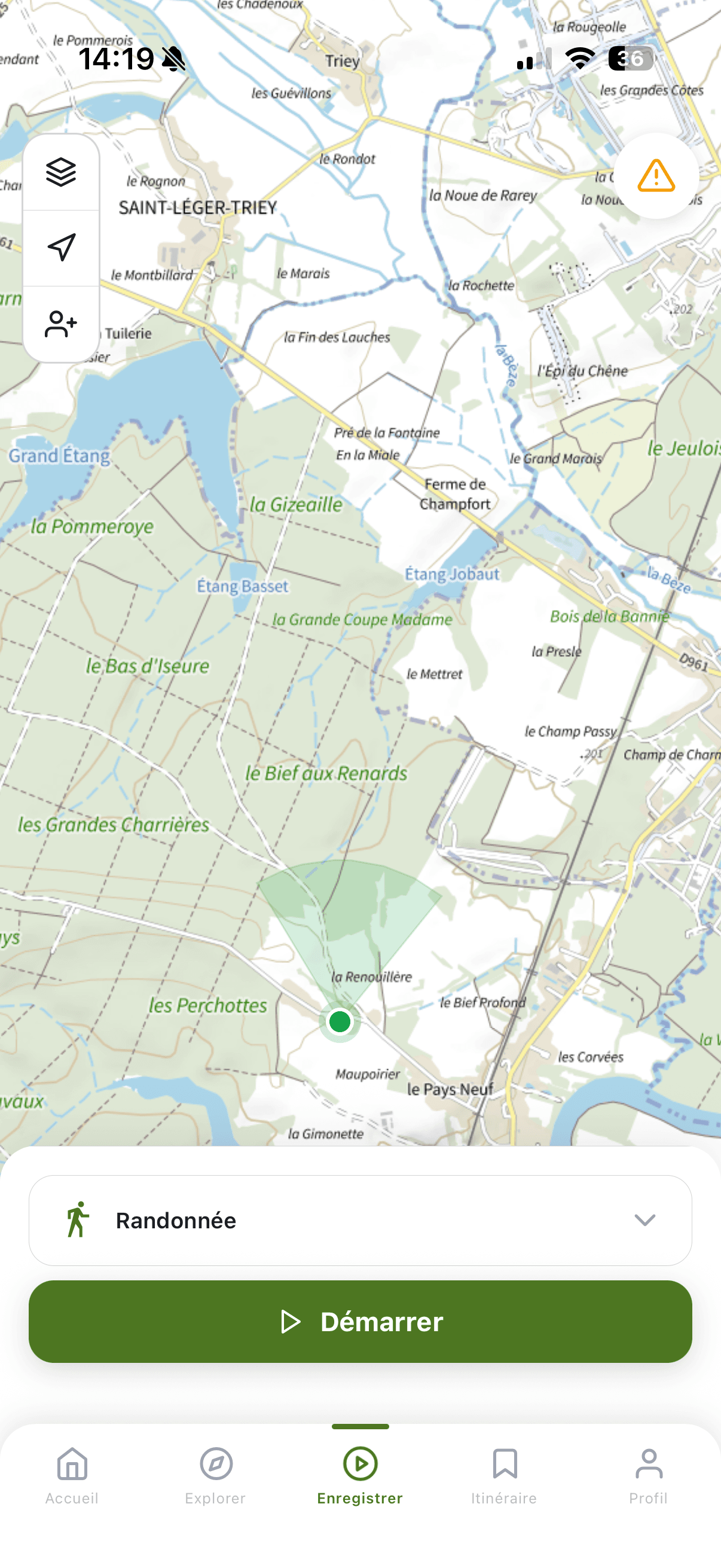
Record an outing
- Choose the activity to record, then start GPS tracking.
- Your position shows live on the map.
- Base map and recentering stay at hand while recording.
- Share your live location: your contacts get a notification.
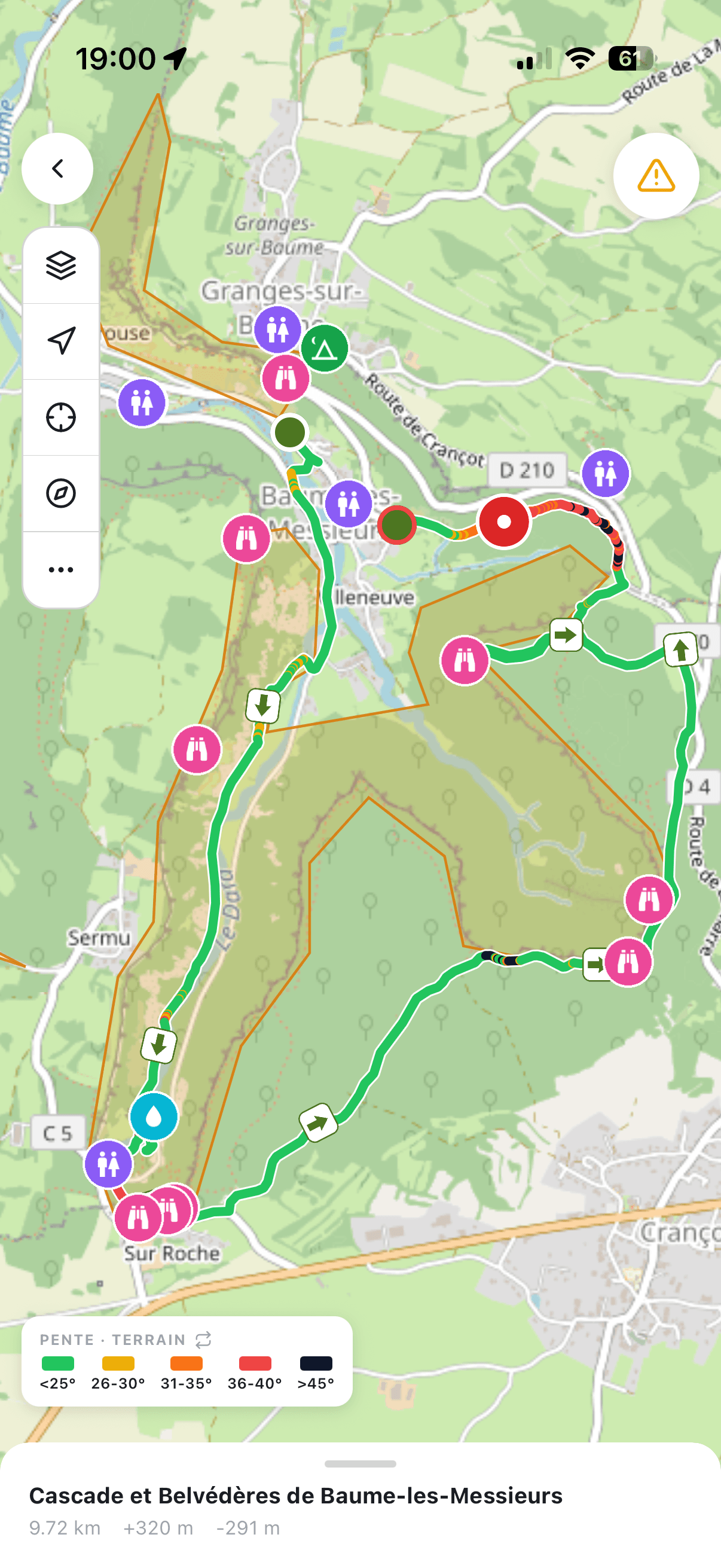
Follow a route
- Your position on the track, with compass and recentering.
- Points of interest: huts, summits, water points, signposts…
- Terrain slope shading, with a legend for the thresholds.
- Reverse the direction of the route in one tap.
- Quick access to the settings from the options menu.
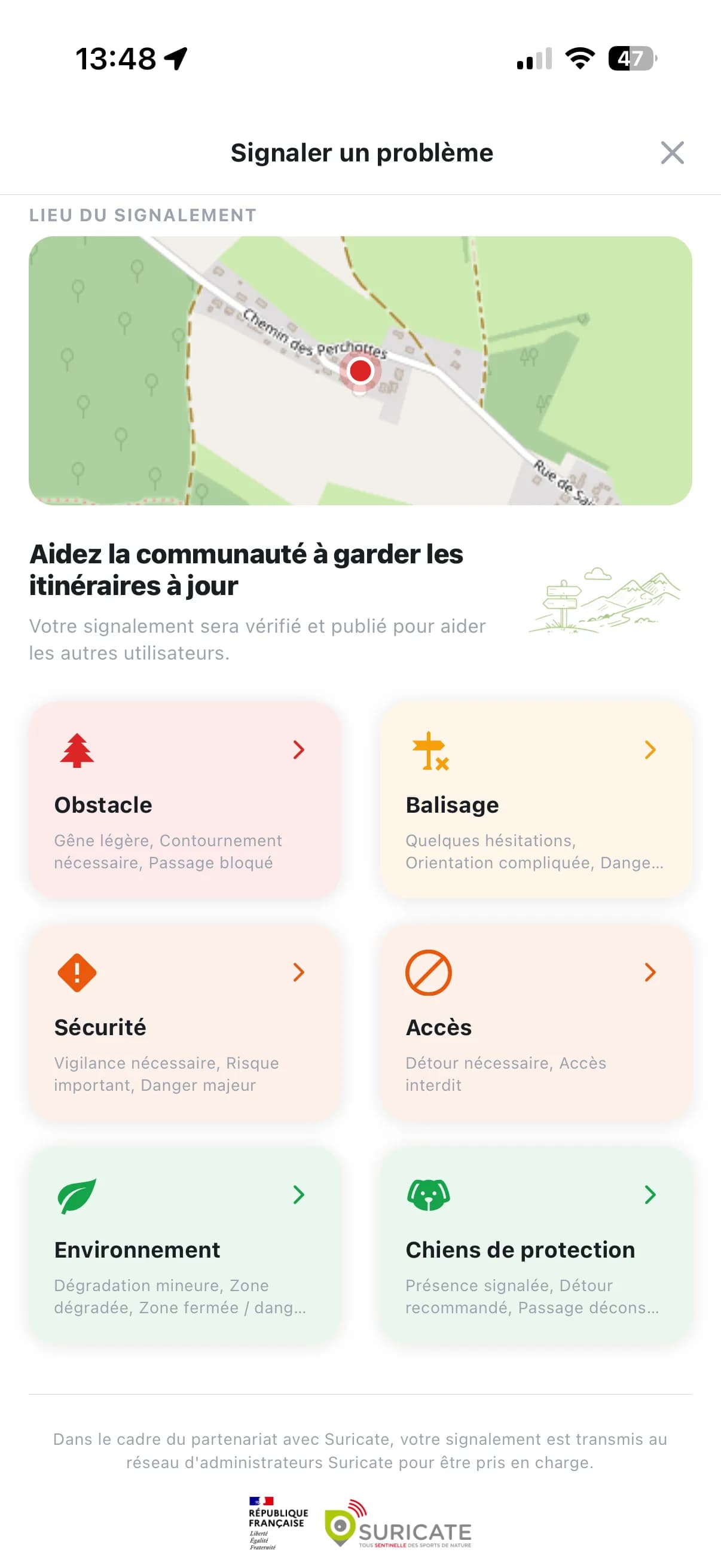
Report an issue
- Issue type: fallen tree, overgrown vegetation, other.
- Optional detail, visible to other users.
- Optional photo to illustrate the problem.
- The report is forwarded to the official Suricate network.
05 · Organize & share
Keep everything together.
Sort your routes into folders, follow your stats, and share your itineraries with friends or the whole community.
Favorites and folders
- Favorite the routes you are interested in.
- Sort them into folders; each folder has a 6-digit code.
- Folder options: rename, private or public visibility.
- The Downloaded tab keeps your routes offline, maps included.
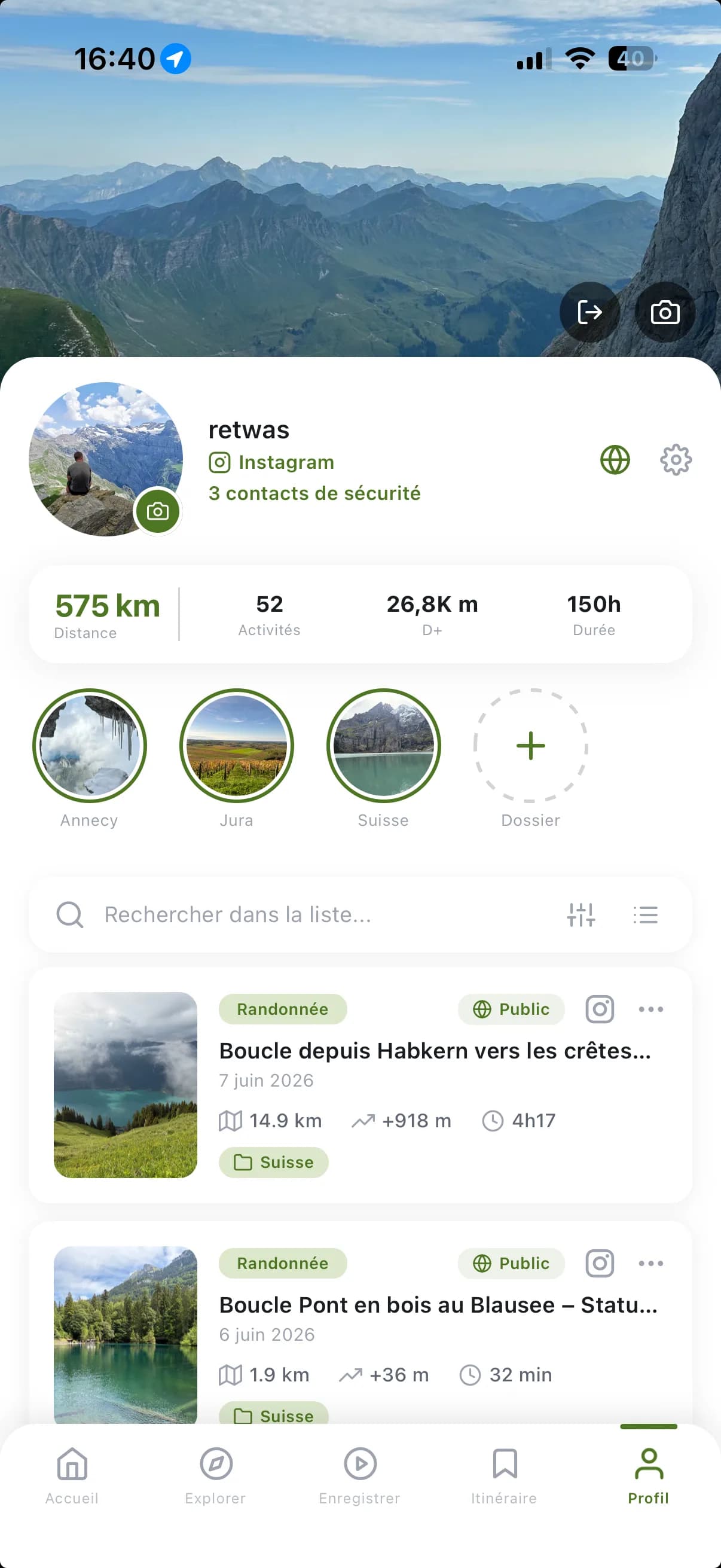
Your profile
- Cover photo and profile photo, both editable in a tap.
- Account visibility (public / private) and personal data.
- Your safety contacts, alerted when you share your location.
- Your stats: distance, activities, elevation, time.
- Search and filters across your whole history.
- Three layouts: large card, compact list or photo grid.
Share
- On every card: the Private/Public chip, sharing and options.
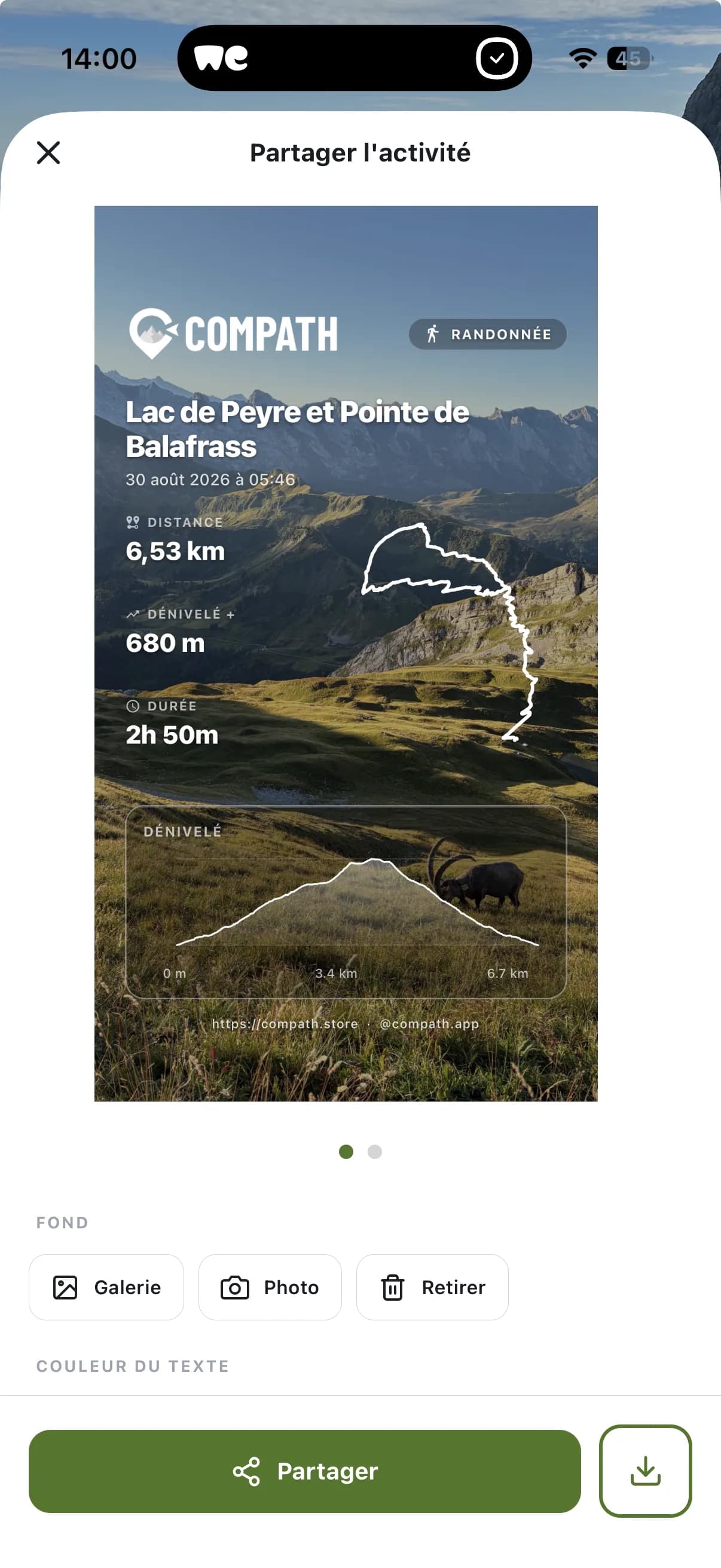
- Share a route by link, by code or on your social networks.
- Share a whole folder with its 6-digit code.
- Make your routes public to offer them to the community.

Ready to head out?
Compath is free. Get the app on iOS or Android and start your adventure.